If you are using laptops in daily work and travel frequently for business meets, your laptop battery stands in a very vital role. It should give you a better battery backup so that you don't have to charge it every now and then.
Like all other electronics, your laptop battery also degrades over time and place you in a situation when you have to replace that battery to ensure that it provides you sufficient backup during your travel.

Check the Battery Health of your laptop in Windows 10 or 11
If you are using Windows 10 or Windows 11 (currently under preview), Microsoft provides you a perfect tool to check the current health of your laptop battery. While your system is running, follow the below steps to generate a full battery report:
- Open the Windows Command Prompt (cmd.exe) from the Start Menu or the Run dialog.
- Type
powercfg /batteryreport in the command window and press Enter. This will generate the report and save it to "C:\users\[USERNAME]\battery-report.html".
- Now navigate to that folder and open the newly saved file to see the full battery report.
As the full battery report of your laptop has been generated, you can open it to see the current health of your connected batteries.
The report lists all the installed batteries on your system. Check the "Design Capacity" and "Full Charge Capacity" fields to understand the current state. If there is a vast difference between those, you might think of a replacement for that battery.
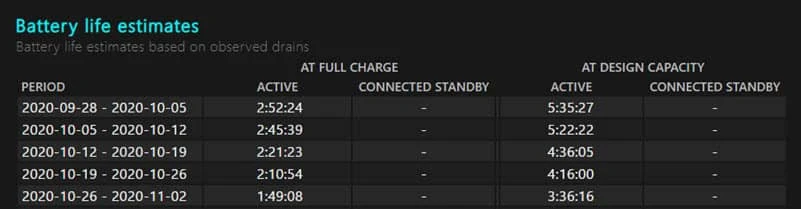
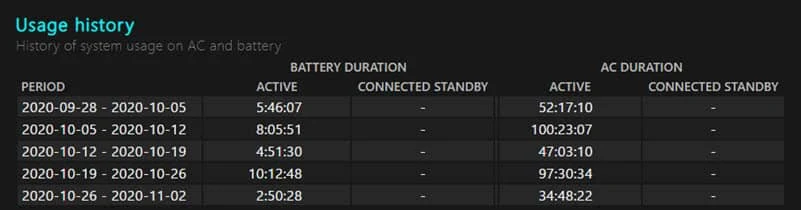
The report also lists the recent usage with a graph, battery capacity history, and life estimates. Do note that all these estimates are based on the observed drains of your battery since the OS install.