By default, the Azure Static Web Apps environments are publicly accessible. Microsoft is soon making these environments secure by introducing an option to set a password to it. Once added, visitors will require to enter that password before viewing the app.
Password protection is a user-friendly feature that provides a low level of security. It can be used in addition to Static Web Apps Authentication. To learn how to enable password protection on your Azure Static Web Apps environments, continue reading further.
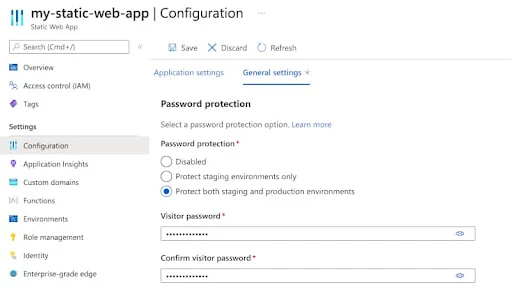
You can soon use a password to protect your app's pre-production environments or all environments. This feature is currently available in Preview, and will soon be available to all users. You can use password protection in various scenarios which include:
- Limiting access to your static web app to people who have the password
- Protecting your static web app's staging environments
How to enable password protection in Azure Static Web Apps environments
- Open your static web application in the Microsoft Azure portal.
- Under the Settings menu, select Configuration.
- Now select the General settings tab.
- In the Password protection section, select Protect staging environments only to protect only your app's pre-production environments or select Protect both production and staging environments to protect all environments.
- Enter a password in Visitor password which must be at least eight characters long and contain a capital letter, a lowercase letter, a number, and a symbol.
- Enter the same password in Confirm visitor password.
- Select the Save button to commit the configuration changes.

