
If you have installed Windows 8 RTM, you might have noticed that the “Hibernate” option is missing in “Power Menu”. So you might want to activate this option in your Windows 8 Power Menu to enable the Hibernate in your system.
This blog post will help you to enable “Hibernate” option in your Windows 8 Power Menu. Continue reading to further know about it step-by-step.
Prior to Windows 8, we used to enable hibernate option by going to the console and use the “powercfg” command. But in Win 8, that command will not help you in this stage. It requires change of a different settings present in the “Power Options” page. Let’s start step-by-step to enable this.
Here is a screenshot of the default Power menu of Windows 8 where the hibernate option is missing:
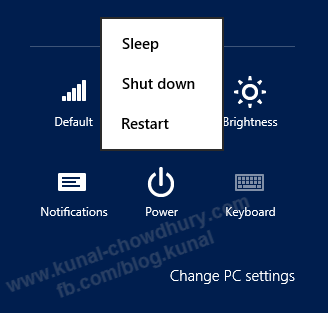
To enable it, first go to the “Power Options” page and click the link “Choose what the power buttons do” in the left side panel as shown below:
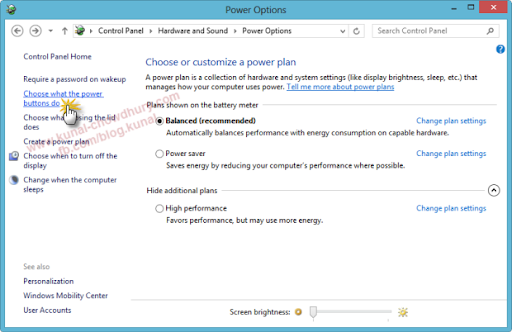
This will navigate you to the “System Settings” page of “Power Options”. At the bottom of the page (under “Shutdown settings” section), you will find that the “Hibernate” option is unchecked and it is disabled for any changes. To activate it for modification, click the “Change settings that are currently unavailable” link present at the top of the page (as shown below):
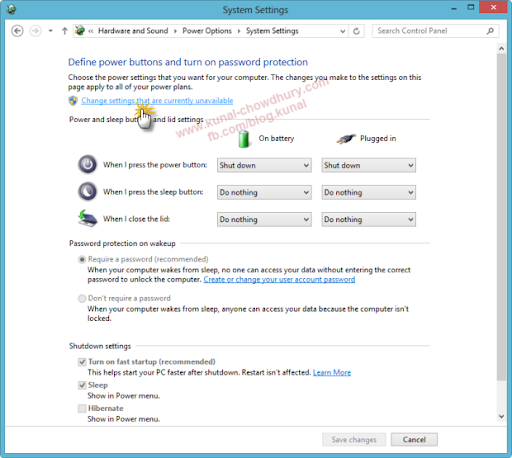
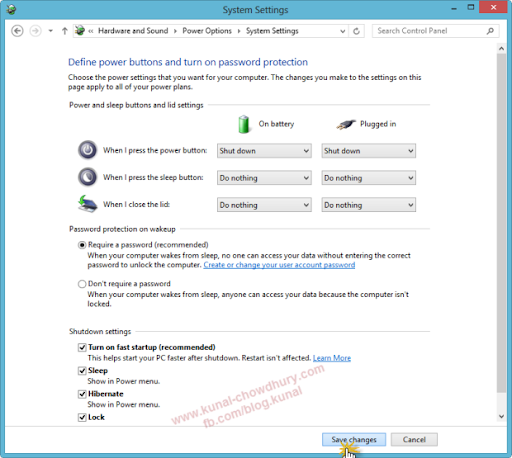
This will enable you the “Shutdown settings” section. Now check the “Hibernate” settings as shown in the below screenshot:
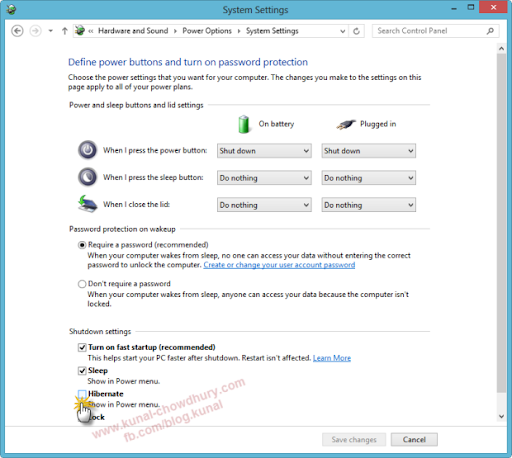
Now click on the “Save changes” button to save the modified settings to the system and activate the hibernate option.
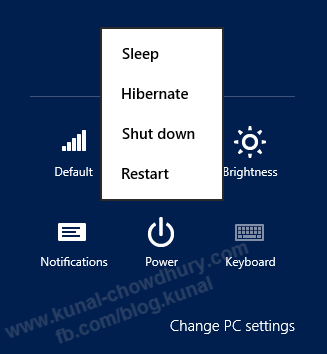
Now if you go to the Power menu, you will notice the “Hibernate” option now available there and you will be able to hibernate your system now. Here is the screenshot of the same:
I hope, this quick note will help you to enable the hibernate option in your Windows 8 PC. Stay tuned to my blog for many more articles, tips & tricks and news. I am also available on Twitter, Facebook and Google+. Don’t forget to subscribe to my blog’s Newsletter to receive the updates directly to your inbox.

